Scroll to the bottom for pictures.
Landing page available.
Gym App Background
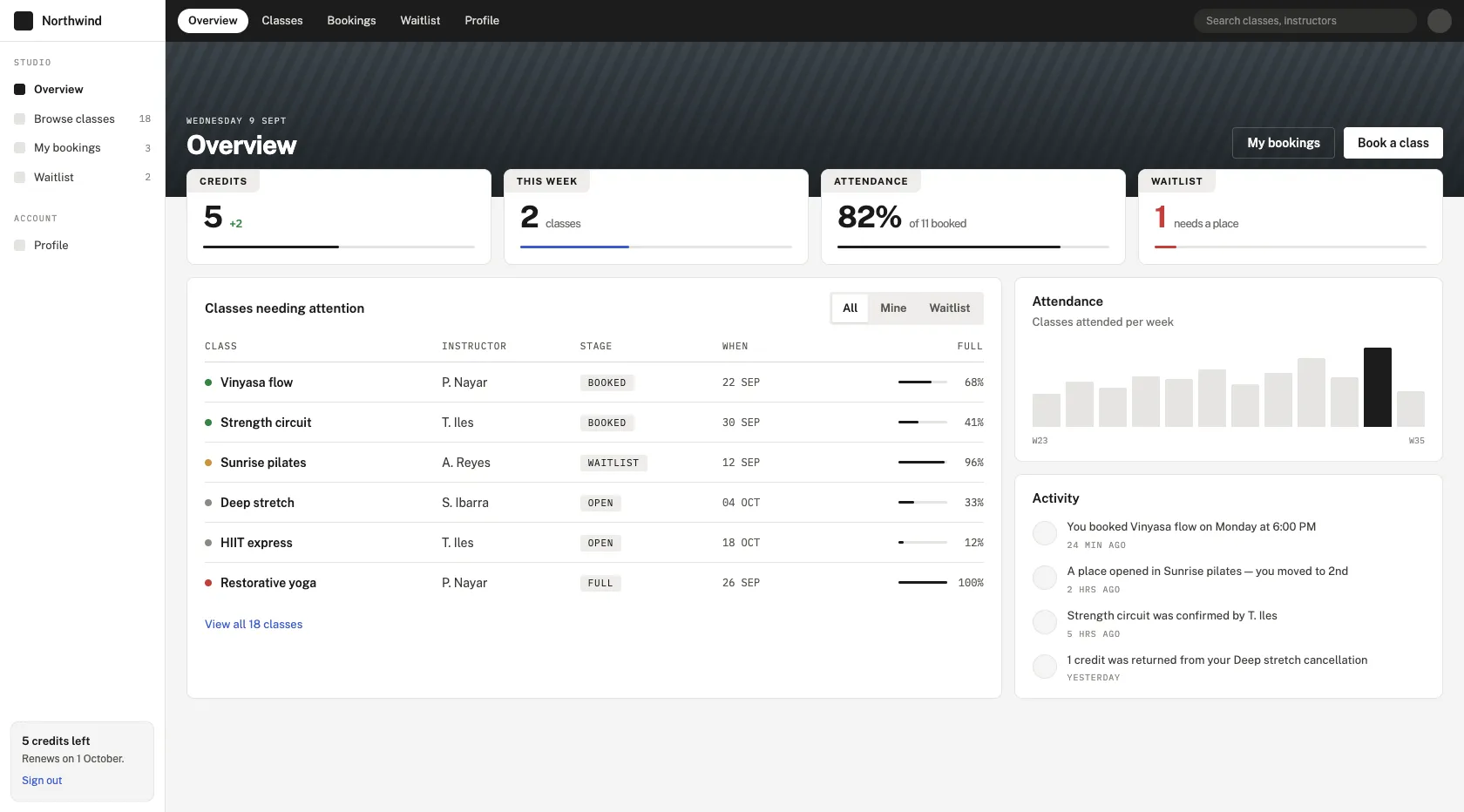
So, I’ve already created a gym app with business logic, but the interface was rather plain. I wanted to extend the UI to provide more functionality, and so I could create my own design system.
Dashboard Design
Dashboards. There’s so many of them. But, in fact, they remain a challenge, because there’s so many decisions to consider when designing a dashboard for your app.
In fact, dashboard isn’t even a good name for this, although it’s the one that the industry has settled on. If you want an app with a left sidenav and different pages, search GitHub for “dashboard” and you’ll get what you’re looking for. This is a point that’ll become relevant later.
Starting Out
A beginner will try to hand code everything themselves, but I realized it’s better to start from existing material, and adjust accordingly.
I had created an initial dashboard design several weeks ago, when I was using Claude Code to create more “retro” designs. For instance, in the 2010s era you often saw some kind of background header section above the main content. I wanted to bring this back, because I thought it would give the design a bit of character. I also had some scribbles in a physical notebook for ideas on variations on headers and cards. I had font and color already made up in mind, preferring a red, beige, grey, black color scheme. It would be somewhat corporate, but also exude a kind of warmth with the red and beige. So, I started with a color and font choice (the base for any design system), and then an example of an actual page, and finally some inspirational ideas for decoration in my notebook.
I used Claude Code to generate a design given the initial dashboard design and color/font scheme. It asked me some questions regarding say, the sizing of the corners and other visual preferences, which I answered (I wanted small corners, but not rectangular, to give it a more “serious” feel). It was able to initially generate a good design library from my reference and font/color/styling choices alone.
I asked it to generate variations. I used my book of scribbles as inspiration. Some worked, some didn’t, but the nice thing was that Claude was able to foresee potential “clashes.” For instance, I suggested segmented sections using a black bar at the left, but then it turned out this could be visually similar to blockquotes, so I decided it was something to avoid. This was really useful, because this was always a big failure mode as a designer, trying something different by incorporating a particular design idea, which turned out to clash too much (not just in similarity, but in say, visual clutter, color, etc.) with an existing element.
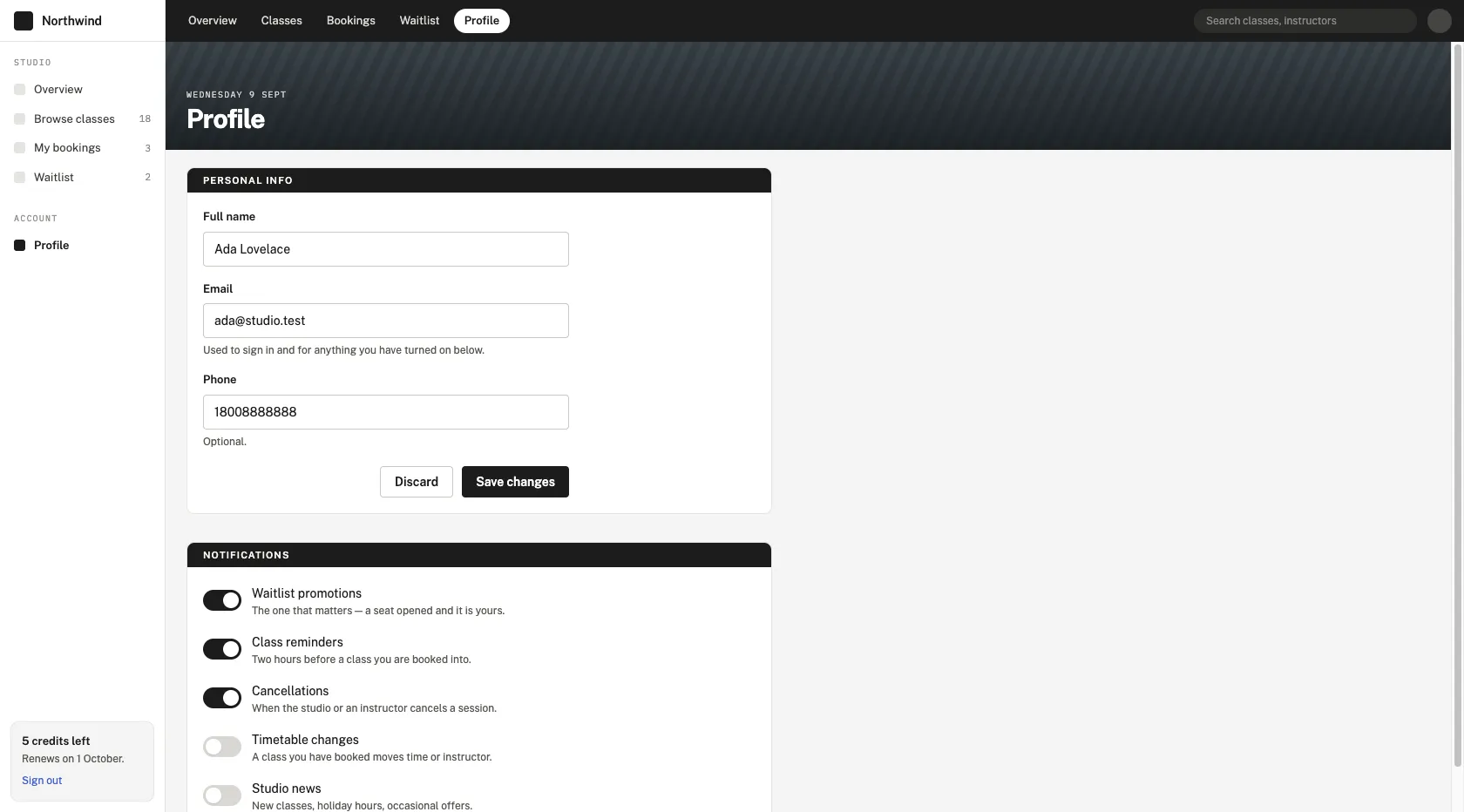
One thing that did work from my book of scribbles is putting the header of a box/card in its own top left rectangle. This was a unique touch, and didn’t clash. It worked out very nicely in the end, provided you know at which level in the info hierarchy to use it.
Handling Multiple Components
However, making dropdowns and buttons is not the hard part. What’s hard is deciding how to compose elements together.
This is where you have to make decisions based off requirements and capabilities. What is the problem space (in this case)? What are the existing inspirations/ways to do it?
I know which pages I had to have - dashboard overview, class browsing, managing bookings, waitlist, profile/settings, etc. I looked for the typical types of layouts that exist, and stumbled upon the existence of “Every Layout,” which taught that layouts typically existed as one of a few different types. Now, the types they had, were not necessarily the same as what I had in mind, but I did see the point. I also reflected on my own experience at various companies. I realized it was somewhat rare to have different types of component to each other in a typical “front page dashboard” like pattern, because pages were typically specialized and contained 1 type of component.
I used image inspiration search to verify my intuition. I could find similar looking dashboards, and sure enough, most only really used multiple component types on the overview/front page. I also took a look at a dashboard template website as well, to look at existing patterns.
I had to then decide between using cards, lines, or spacing as separators. Ultimately, I decided on having small cards for sub-components, large cards for components on the overview page, and then lines for any cases of having two different components side by side (instead of 2 cards).
I think there’s only really particular layouts to be wary of - in the case of a detail panel to the right, I would prefer the use of lines as opposed to a separate card (as a result of this rule).
Technicalities
After creating a design system in Claude, I was able to export it into a folder with a DESIGN.MD document, which is very important for the “handoff” portion. DESIGN.MD gives instructions to the AI agent about how to use a design system, its rules and conventions.
Pictures